User Guide
Everything you need to get the most out of AirLedger — from logging your first flight to exporting an EASA-format PDF logbook. Use the contents on the left to jump to any topic.
1. Installing AirLedger
After purchasing, you receive a download link and a license key by email (payments are handled by Lemon Squeezy, our Merchant of Record). AirLedger runs on both macOS and Windows — follow the section for your system below.
On macOS
- Open the downloaded
.dmgfile. - Drag AirLedger into your Applications folder.
Opening AirLedger the first time
On macOS Sonoma, Sequoia and later (the current versions):
- In your Applications folder, double-click AirLedger. macOS shows the warning and refuses to open it — click Done.
- Open the Apple menu (top-left of your screen) → System Settings → Privacy & Security.
- Scroll down to the Security section. You'll see “AirLedger was blocked to protect your Mac.” Click Open Anyway.
- Confirm with Open Anyway, then authenticate with your password or Touch ID.
- AirLedger launches. You won't be asked again — from now on it opens normally.
On older macOS (Ventura and earlier), you can instead right-click (or Control-click) the AirLedger icon → Open → Open.
xattr -dr com.apple.quarantine /Applications/AirLedger.appOn Windows
You receive the installer AirLedger Setup 1.0.0.exe. AirLedger is a small independent app that isn't yet signed with a Windows code-signing certificate, so Windows shows a security prompt the first time you run it. This is expected — the app is safe. Which prompt you see depends on your Windows version:
If you see “Windows protected your PC” (SmartScreen)
- Double-click
AirLedger Setup 1.0.0.exe. - On the blue window, click More info.
- A Run anyway button appears — click it. The installer opens normally.
.exe → Properties → tick Unblock at the bottom → Apply, then run it.If you see “An application control policy has blocked this file” (Smart App Control)
Some Windows 11 PCs ship with Smart App Control, a stricter filter that blocks unsigned apps without a “Run anyway” option. To install AirLedger you need to turn it off once:
- Open Settings → Privacy & security → Windows Security → App & browser control.
- Click Smart App Control settings.
- Set it to Off and confirm.
- Run
AirLedger Setup 1.0.0.exeagain — it now installs normally.
Portable version (no installer)
If you were sent AirLedger-1.0.0-win.zip instead, right-click it → Extract All, open the extracted folder and double-click AirLedger.exe. The same first-run prompt above applies. No installation is needed — the whole folder can even live on a USB drive.
Activating your license
On first launch, paste your license key on the activation screen and click Activate. See Managing your license for details on moving it between Macs.
AirLedger then opens with three example flights so you can explore right away. Each is labelled “Example flight — you can delete it”; remove them whenever you're ready to start your own logbook.
2. Logging a flight
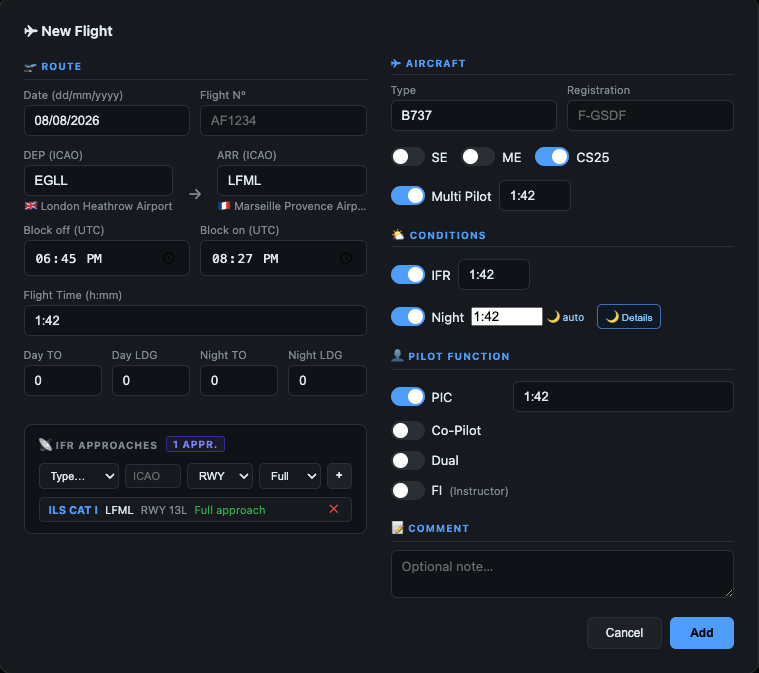
Click + Flight (top of the Flight Log) to open the New Flight window. Editing an existing flight opens the same window — double-click any flight in the list.
Route & times
- Enter the date (dd/mm/yyyy) and an optional flight number.
- Type the DEP and ARR ICAO codes. The airport name appears underneath as you type, so you can confirm you picked the right field.
- Enter Block off and Block on times in UTC. The Flight Time is filled automatically (you can override it).
Aircraft
Enter the type and registration, then set the aircraft switches:
- SE / ME — single- or multi-engine. These apply to single-pilot aircraft only and are mutually exclusive. For multi-crew types, use Multi Pilot instead.
- CS25 — for aircraft certified to CS-25 (airliners, most business jets).
- Multi Pilot — multi-crew operation; enter the multi-pilot time.
Pilot function
Set how you flew (PIC and Dual can't be on at the same time):
- PIC — pilot in command.
- Co-Pilot — co-pilot time (enter the minutes).
- Dual — dual instruction received; add the instructor's name.
- FI — hours flown as flight instructor.
Conditions & landings
Turn on IFR to log instrument time and add approaches. Turn on Night to log night time — see the night calculator.
Then record your take-offs and landings. There are four separate counters:
- Day take-offs and Day landings
- Night take-offs and Night landings
Day and night are counted independently because they feed different currency rules: total landings drive your passenger day recency, while the night counters drive your passenger night recency (see Regulatory & currency). For a typical single-sector flight you'll usually enter 1 take-off and 1 landing in the matching day or night column; count each additional circuit or touch-and-go accordingly.
3. Logging a SIM session
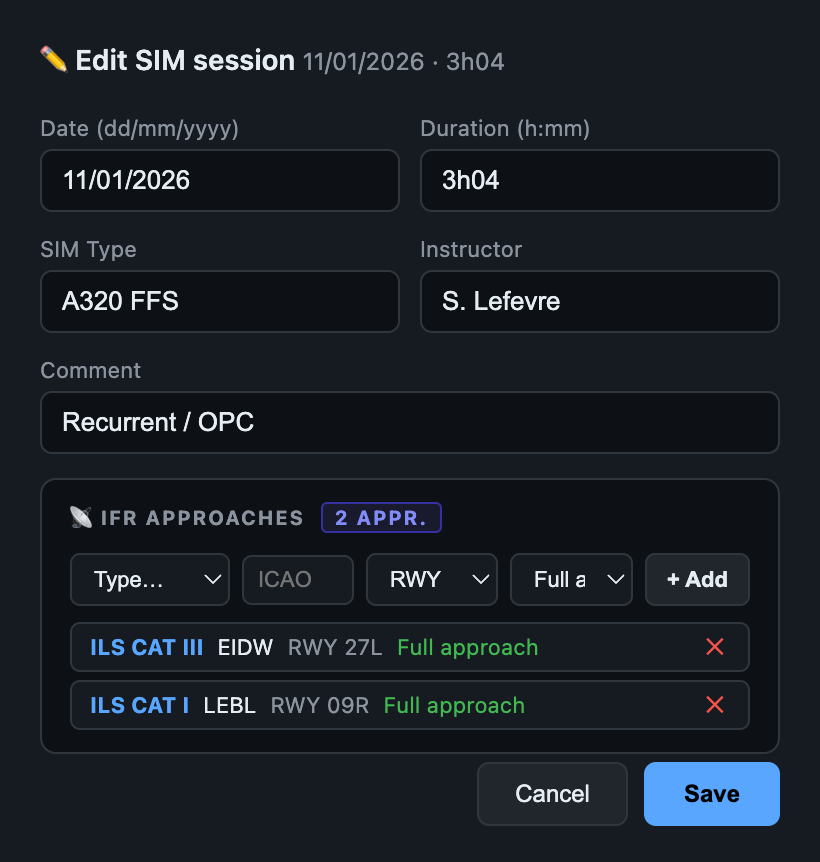
AirLedger keeps simulator activity separate from aircraft flights while still making it part of your professional training record. Open ✦ Flight Log, select the SIM tab and click + SIM to create a session.
Session details
- Enter the date and total duration of the session.
- Identify the simulator in SIM Type, for example A320 FFS, B737 FTD or FNPT II.
- Add the instructor or examiner when applicable.
- Use the comment field for the exercise or check, such as recurrent training, OPC, LPC or instrument training.
IFR approaches in the simulator
Add each approach with its type, aerodrome, runway and result. Simulator approaches are stored individually and included in your IR recency monitoring alongside approaches flown in the aircraft.
4. IFR approaches
When IFR is on, the Approaches section appears. Approaches feed your IR recency (FCL.625) and are printed in your EASA export.
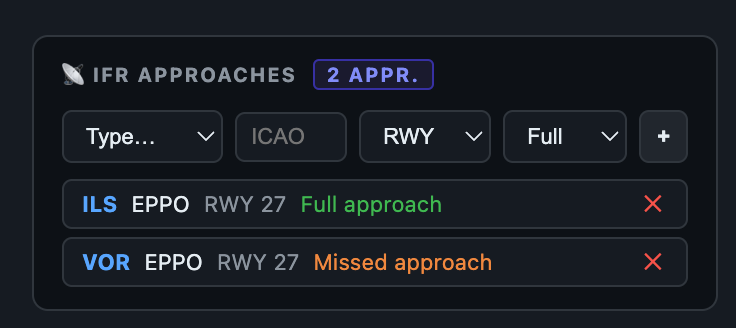
- Pick the approach type — ILS CAT I/II/III, LOC, LPV, RNP AR, VOR, VOR/DME, NDB or PAR.
- The ICAO defaults to your arrival airport (you can change it).
- Choose the runway from the drop-down — AirLedger lists the real runways for that airport.
- Set the result: Full, Missed or T&G, then add the row. Repeat for additional approaches.
5. Night-time calculator
AirLedger computes night time automatically from your route and times — no more manual look-ups. It samples the sun's elevation minute-by-minute along the great-circle track between departure and arrival.
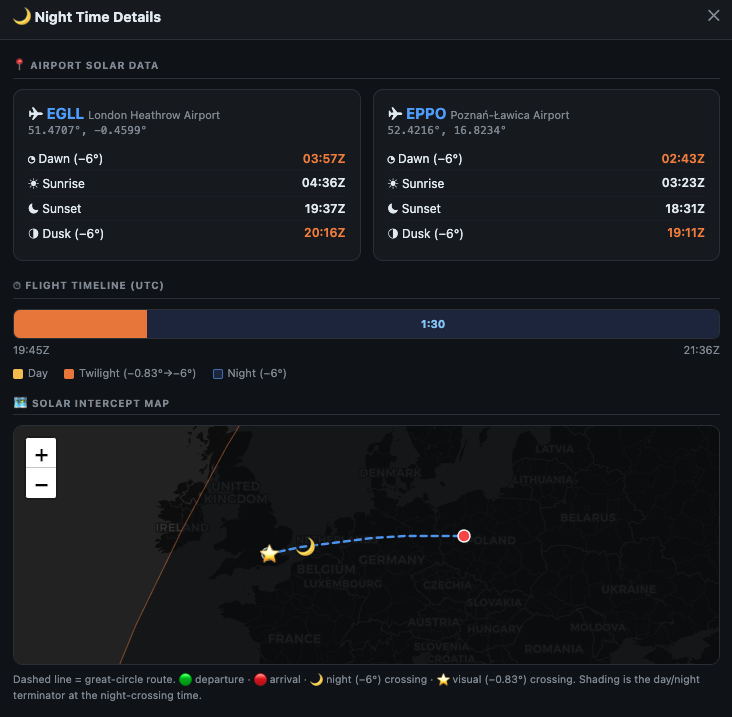
- Loggable night — time with the sun below −6° (civil twilight), the standard for EASA night logging.
- Twilight — between −6° and −0.833° (visual sunset/sunrise).
- Scenario — Daylight, Day into Night, Night into Day, or Night, so you can see at a glance what kind of flight it was.
Turn on Night in the flight window and the minutes fill in; click 🌙 Details to see the full breakdown. You can always type a value to override it.
6. The dashboard
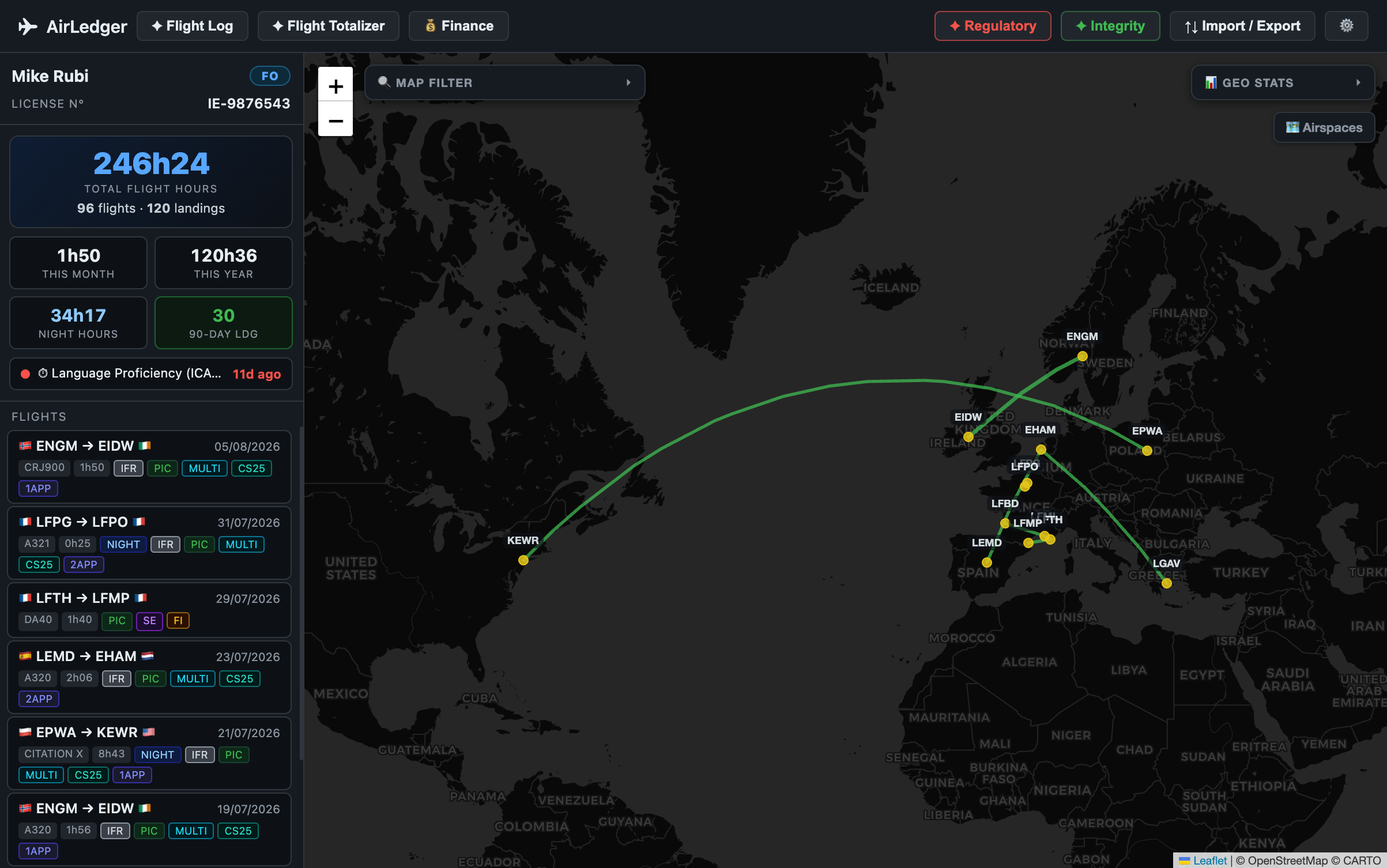
The left sidebar is your at-a-glance summary, always visible.

- Total flight hours — your whole career (previous experience entered in Settings + everything logged).
- Tiles — This month, This year, Night hours, and 90-day landings (colour-coded green/amber/red for recency at a glance).
- Next expiry — the soonest qualification or recency deadline.
- Pilot card — your name, rank (CPT/FO) and licence number, set in Settings.
These figures are computed from your entire logbook, independent of any map filter you've applied.
7. Flight log & views
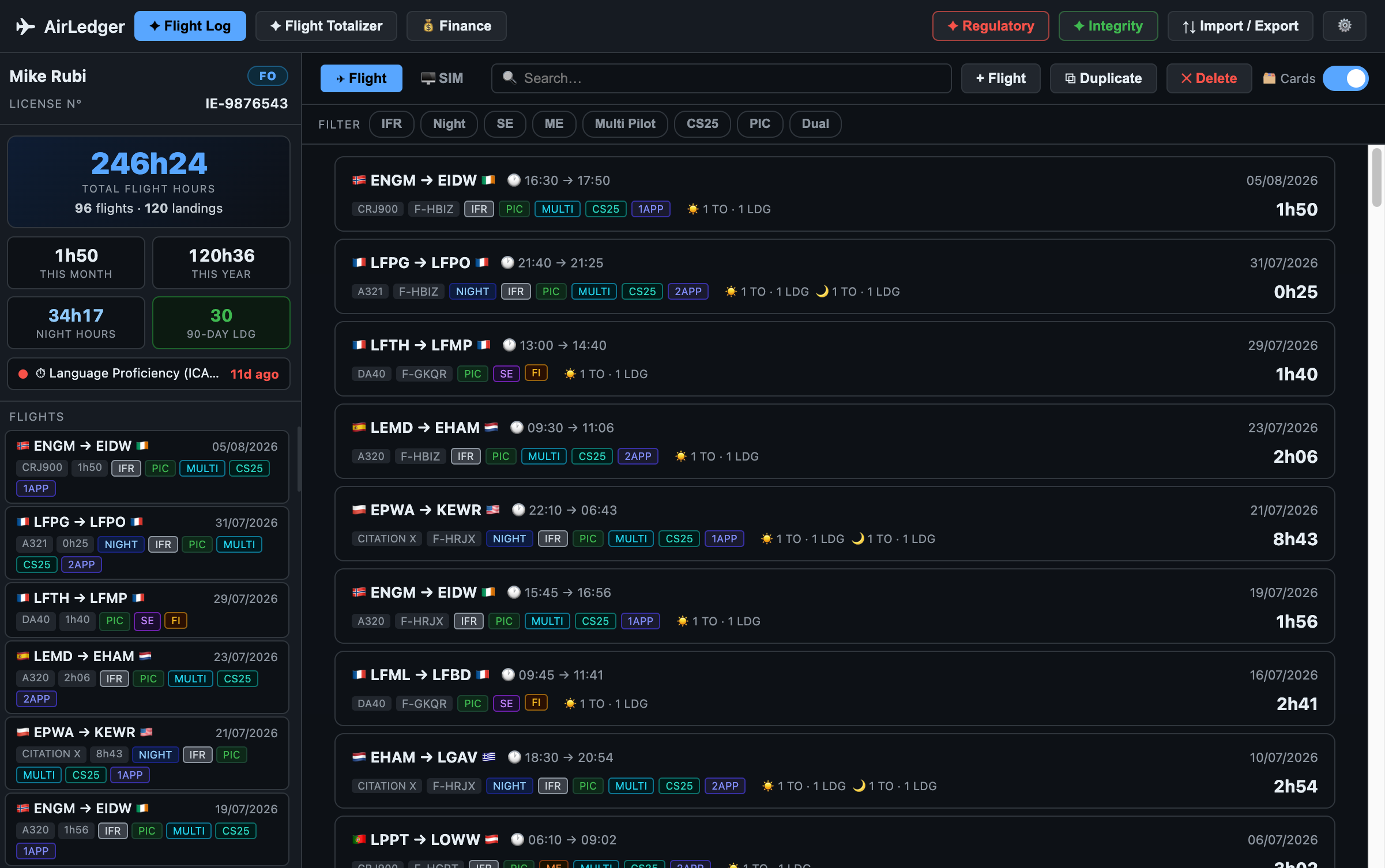
Open ✦ Flight Log for the full, searchable table of flights (and a separate SIM tab for simulator sessions).
Card view
Strip view
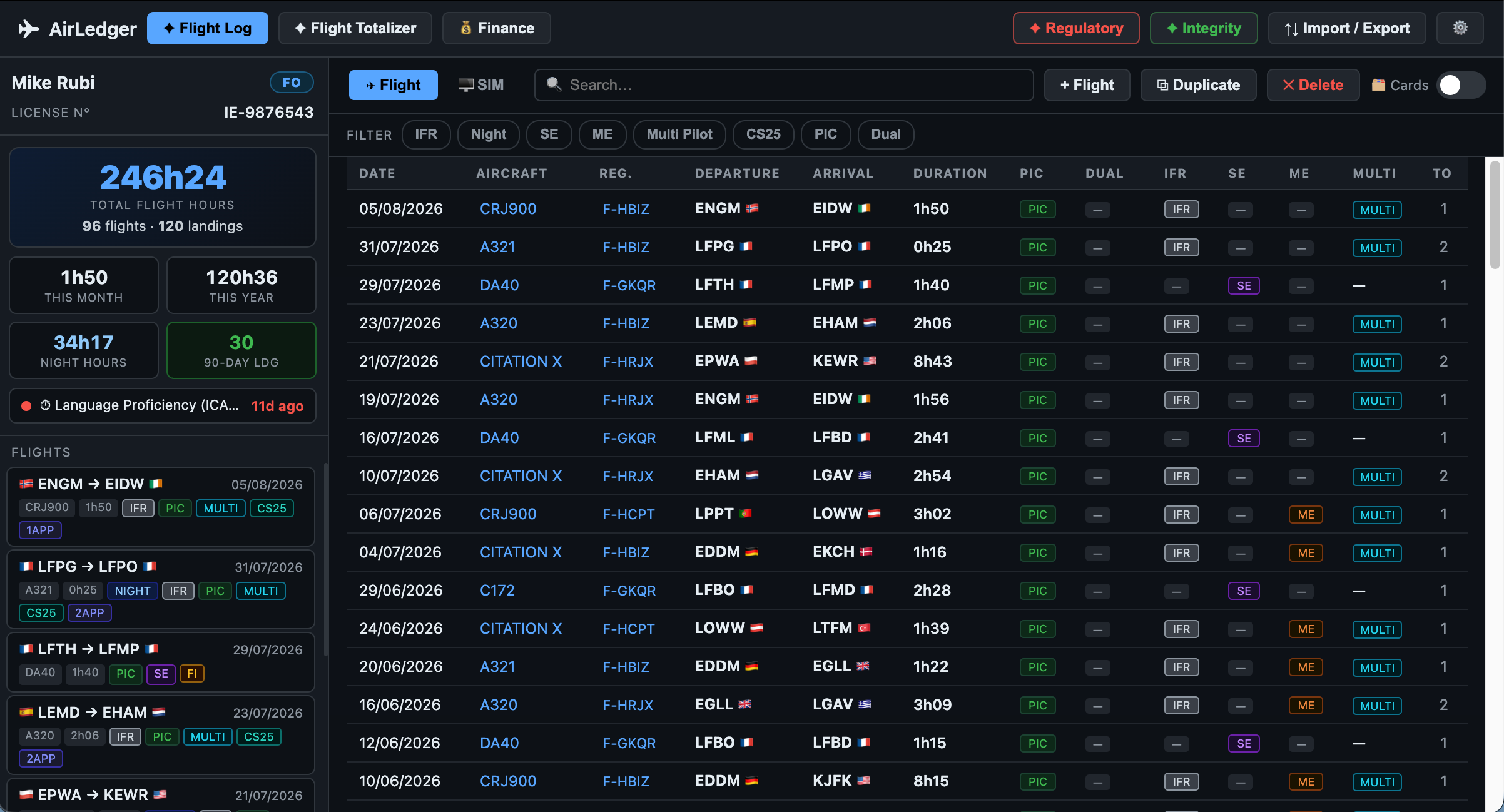
- Search and filter chips (IFR, Night, SE, ME, Multi, CS25, PIC, Dual) narrow the list instantly.
- Two display modes — switch between Card and Strip views, whichever you prefer: cards for readability, strips for a more compact, scannable list.
- Duplicate a similar flight to log repeat sectors in seconds, then edit the details.
- Select a flight to edit or delete it.
8. Flight Totalizer
✦ Flight Totalizer breaks your hours down every way EASA (and your next employer) will ask for.
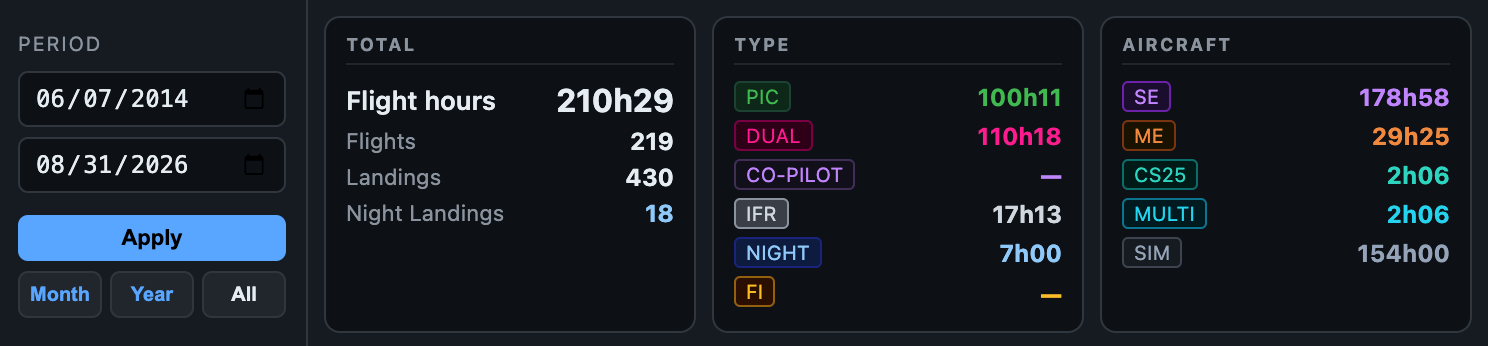
- Total — flight hours, flights, landings, night landings.
- Type — PIC, Dual, Co-Pilot, IFR, Night, FI.
- Aircraft — SE, ME, CS25, Multi-pilot, SIM.
- Location — countries visited; click it to open a scrollable breakdown by country.
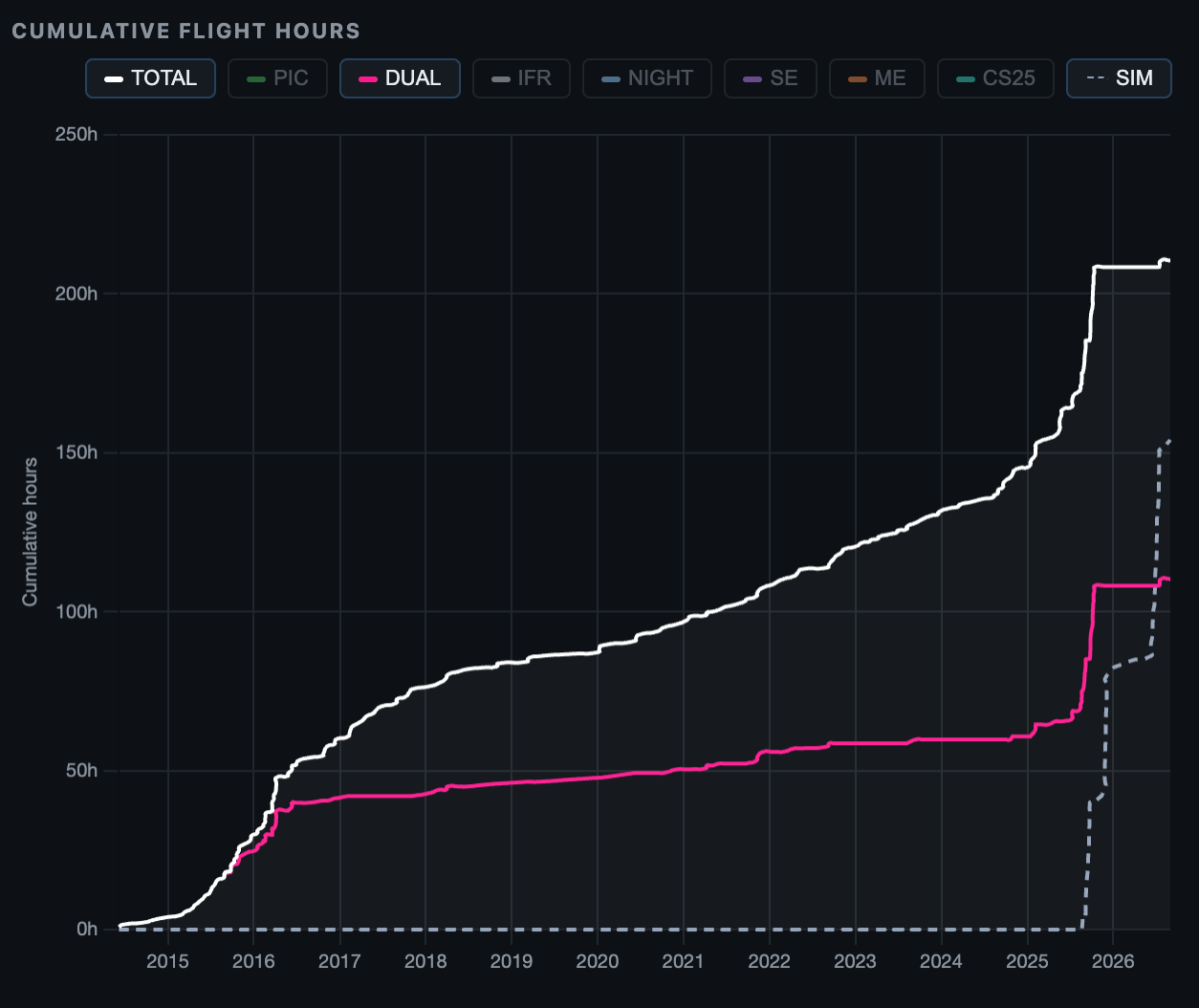
Use the Period selector (This month / year / All, or a custom range) to total any window. The charts below are configurable — hours per aircraft, landings by aerodrome, PIC vs Dual, take-offs & landings, monthly/yearly hours, and activity heatmaps. The main chart plots your cumulative hours, with a toggle per series.
9. Map & Geo Stats
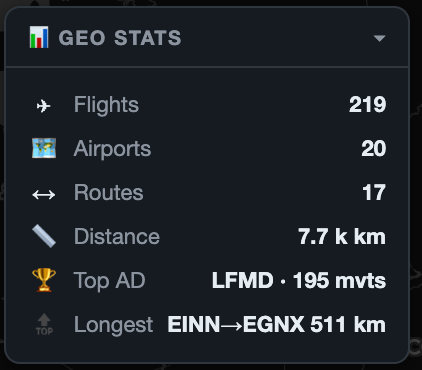
Every flight is drawn on the map as a great-circle route. The Geo Stats panel summarises where your flying has taken you.
- Map Filter (next to the zoom controls) limits the map to a period or category without affecting your totals.
- Airspaces overlays airspace data (via OpenAIP) when you want it.
- Colours — set your own route and marker colours in Settings → Map.
10. Regulatory & currency
✦ Regulatory tracks the recency rules that matter and warns you before they lapse. Alerts also surface in the 🔔 menu and on the dashboard.
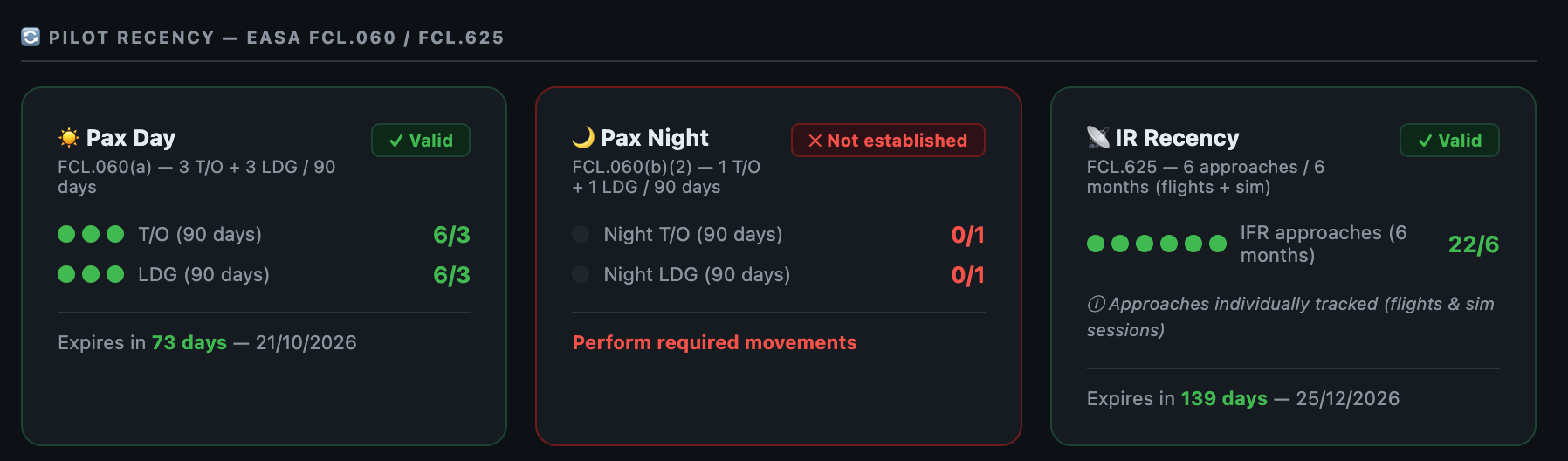
- Passenger recency — FCL.060(a) day and FCL.060(b)(2) night: 3 take-offs & landings in 90 days (1 at night for night carriage).
- IR recency — FCL.625: at least 6 instrument approaches in the rolling 6 months.
- Each shows whether you're current and when it expires, colour-coded as it approaches.
Custom qualifications
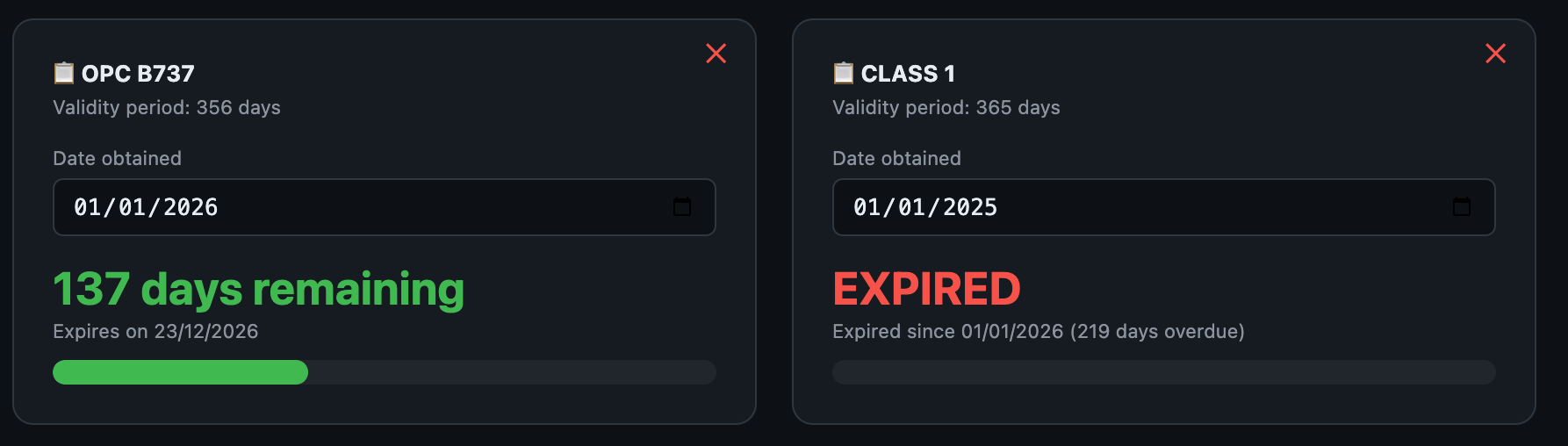
Add any dated item — Class 1 medical, type rating, language proficiency, SEP — and AirLedger reminds you as it nears expiry (lead time set in Settings). You can enable or disable each rule so you only track what's relevant to you.
11. Cosmic radiation dose
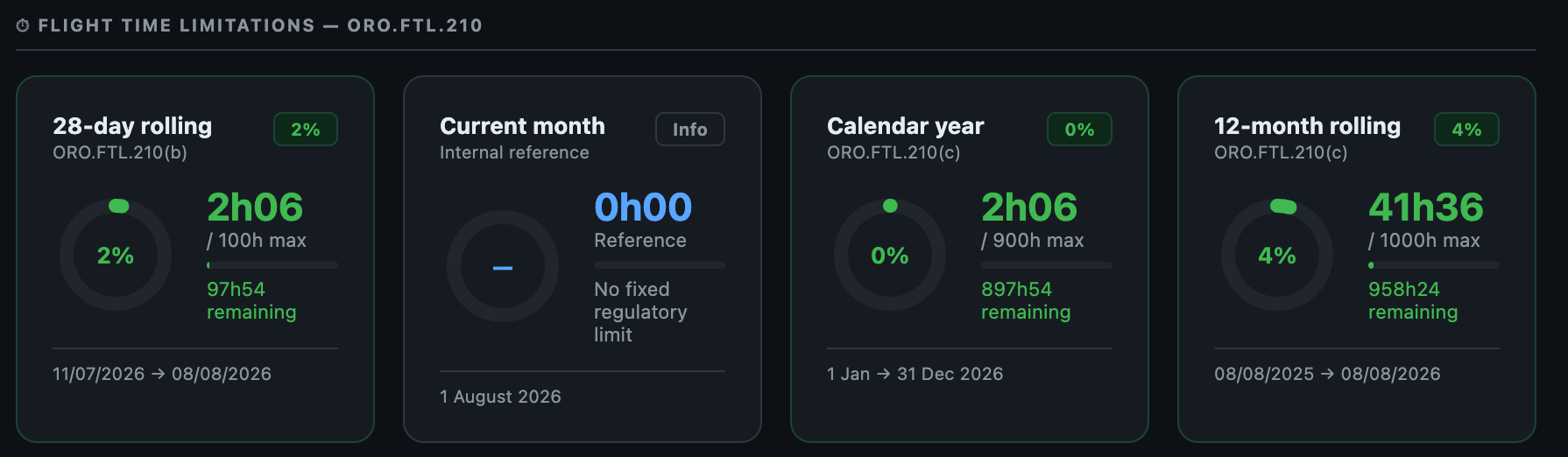
At altitude, aircrew are exposed to more cosmic radiation than on the ground, and under Directive 2013/59/Euratom this exposure is meant to be assessed. AirLedger estimates your effective dose automatically from the flights you log, and tracks your cumulative total against the key thresholds.
How the estimate works
For each flight, AirLedger samples your great-circle route and computes a dose rate that depends on the four factors that actually drive cosmic exposure:
- Altitude — the dominant factor (dose rises roughly exponentially with height).
- Geomagnetic latitude — polar routes receive more than equatorial ones.
- Solar activity — the 11-year solar cycle, taken from the flight date.
- Time at cruise — derived from your block time.
The model is calibrated to published values from the reference tools (CARI-7, EPCARD) and runs entirely on your Mac — no data leaves the app.
Getting an accurate figure
Enter the flight's Cruise FL in the New/Edit flight window (Aircraft section) — altitude matters most, so this is the single input that improves accuracy the most. As you type, an estimated dose for that flight is shown right next to the field. If you leave it blank, AirLedger uses a sensible default for the aircraft category (jet ≈ FL370, twin ≈ FL180, single ≈ FL80) and marks it as such.
Tracking your exposure
Open ✦ Regulatory and scroll to Cosmic radiation exposure. Three cards show your estimated cumulative dose for this month, the rolling 12 months and the calendar year, plotted against the reference thresholds:
- 1 mSv/yr — exposure should be assessed above this level
- 6 mSv/yr — individual monitoring level
- 20 mSv/yr — effective dose limit
12. Integrity checks
✦ Integrity runs more than a dozen automatic checks that flag conflicts and inconsistencies, so your logbook stays coherent and audit-ready.
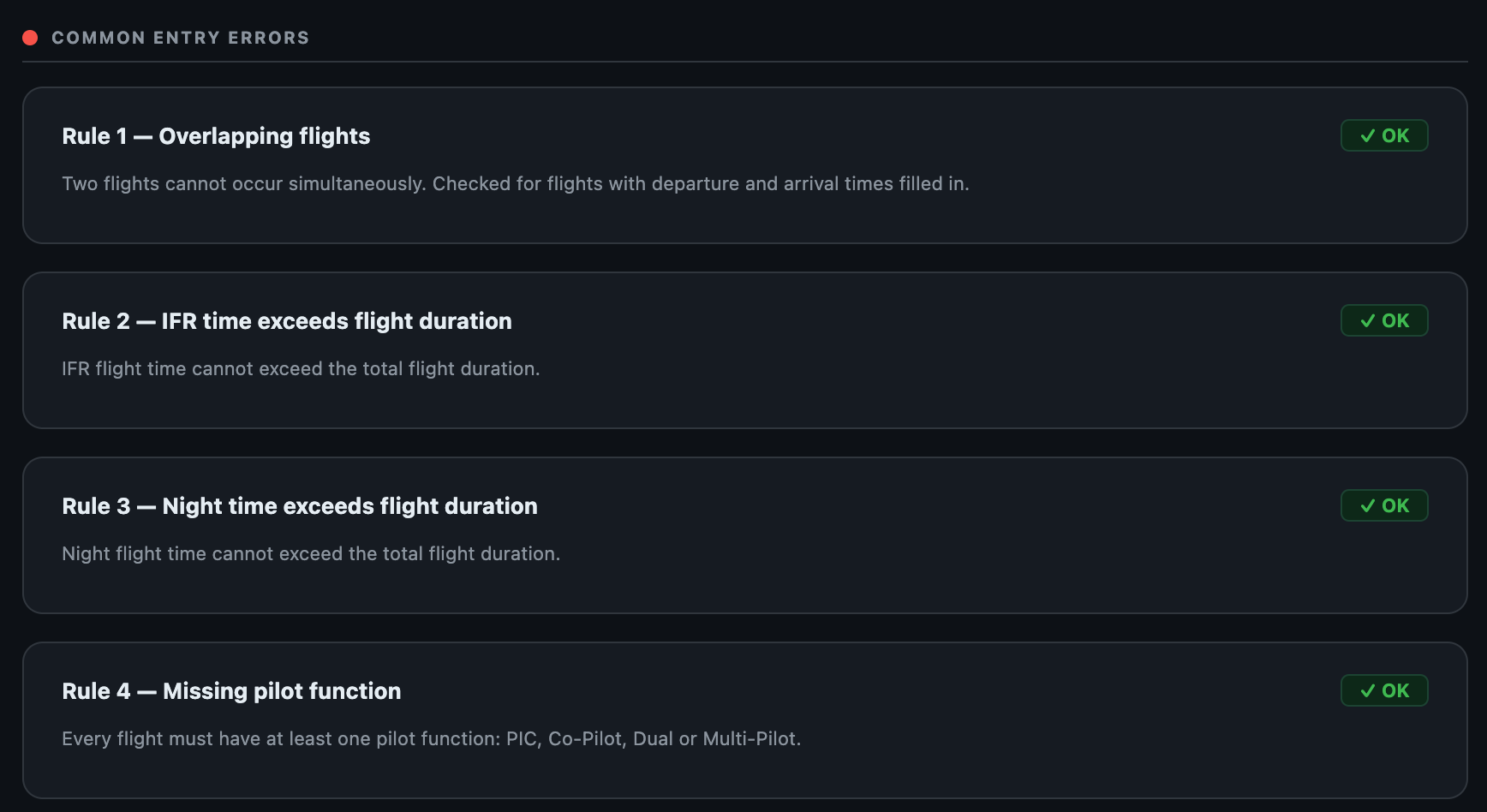
Review anything it highlights and open the flight to fix it. You can turn individual checks on or off if one doesn't apply to how you log.
13. Finance
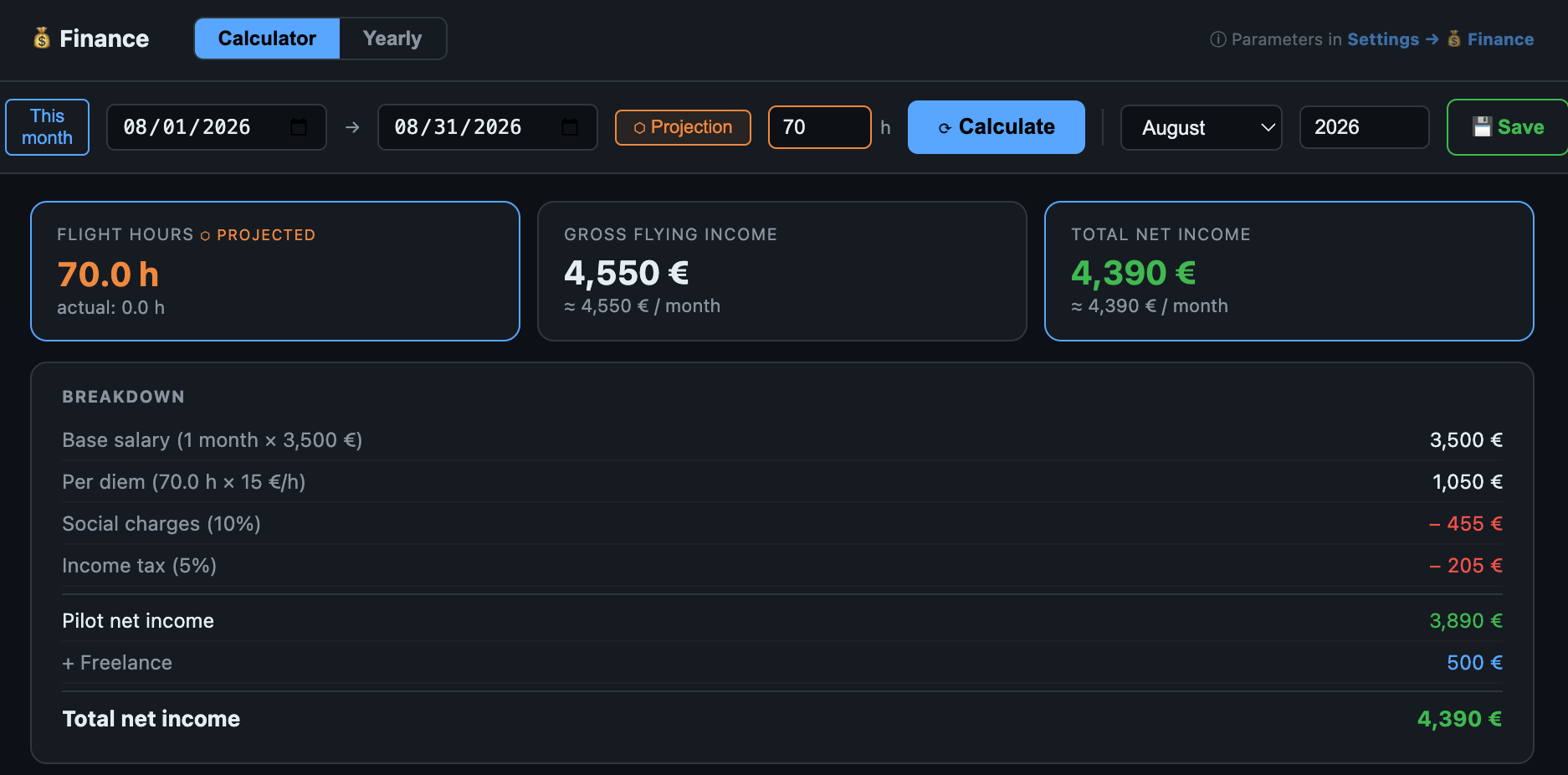
💰 Finance turns the hours you fly into a clear estimate of your earnings — for employed pilots and freelancers alike. Figures are computed directly from your logged flights, and the tab has two views: Monthly and Period.
Set your pay model (once)
- Choose employee (base salary + per-diem per hour) or freelance (hourly rate).
- Enter your tax and social charges percentages. Gross is before them; Net is after — so Net is always the take-home figure.
- Filter which hours count (e.g. CS25 only), and add other items (sector pay, bonuses, deductions) from Settings.
Monthly view
- See gross, net and hours for a single month, with the arrows to step from one month to the next.
- A prediction card forecasts the full month from the activity flown so far — useful mid-month to see where you're heading.
Period view
- Pick a preset — this year, last 12 months or last 3 months — or set your own date range.
- Two separate charts: net income per day or month, and cumulative earnings across the period.
- A breakdown table lists each day or month with its hours, gross and net.
14. Import & Export
↑↓ Import / Export gets your data in and out in every format you'll need.
Guided import — bring an existing logbook
Already keep your hours in Excel or another app? The guided import assistant brings them into AirLedger without re-typing a single flight. Open Import / Export and click Guided import, then follow three steps:
- Choose your file. Select an
.xlsx,.xlsor.csvfile. If your Excel workbook has several sheets, pick the one that holds your flights. - Check the column mapping. AirLedger reads your header row and automatically matches each column to its own field — date, aircraft type, registration, departure and arrival, block times, pilot functions, and so on. It also detects your date format (e.g. DD/MM/YYYY vs MM/DD/YYYY) and how durations are written (h:mm or decimal hours). Adjust any column that wasn't recognised from the drop-downs.
- Preview & import. A live preview shows how your first flights will look. When you're happy, import — choosing to Append to your current logbook or Replace it. Flights are sorted by date automatically.
Export
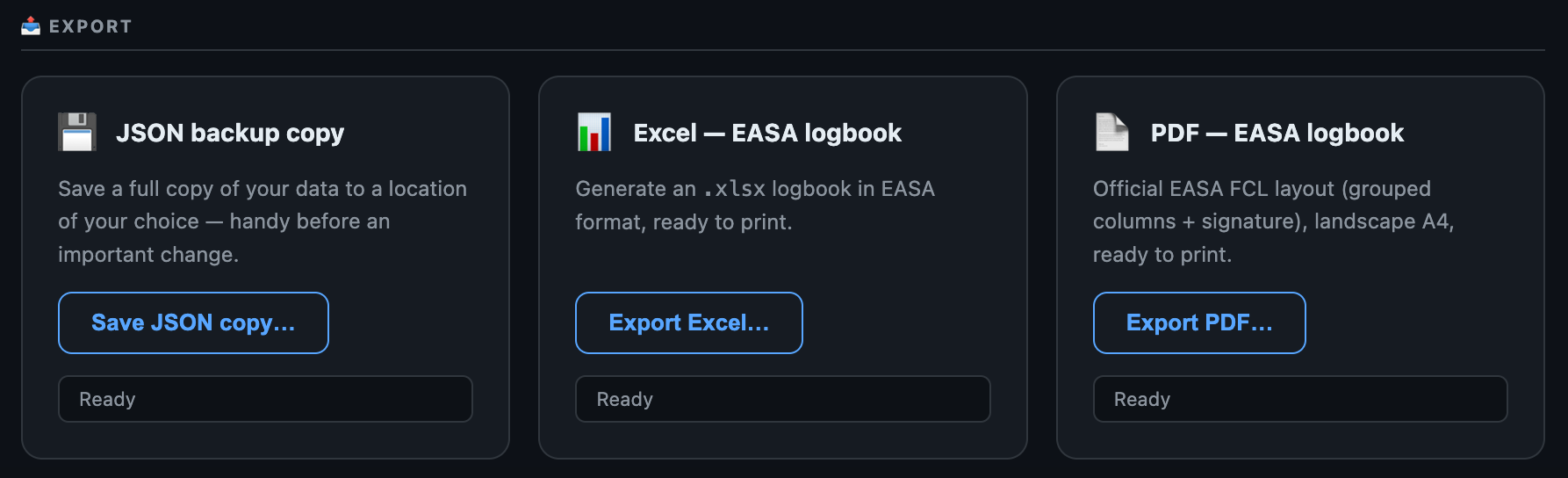
- EASA PDF — a print-ready, landscape A4 logbook in the official EASA FCL layout, ready to sign.
- Excel — an editable spreadsheet (
AirLedger.xlsx) of all flights and SIM sessions. - CSV — a plain table for use in other tools.
- JSON backup — a complete copy of your data you can restore or move to another Mac.

15. Settings & profile
Open ⚙️ (top-right) to set everything up once.
- Profile — name, date of birth, rank (CPT/FO) and licence number (shown on the dashboard and in exports).
- Previous experience — hours flown before you started using AirLedger, so your career totals are accurate.
- Map — basemap, route and marker colours, auto-zoom, labels, and whether the Map Filter is open at launch.
- Defaults — default approach type, auto night calculation, and which chart series are shown by default.
- Notifications — expiry reminders and how many days ahead to warn you.
- Rules — enable only the recency and integrity checks relevant to you.
16. Your data & backups
AirLedger is private by design. Your logbook is a file on your Mac; there's no account and nothing is sent to a server.
- iCloud backup — turn it on and AirLedger saves timestamped copies to your own iCloud Drive automatically.
- Manual backups — export a JSON backup anytime, or point AirLedger's backup folder wherever you like.
- Choose data file — keep your logbook in the location you prefer; AirLedger reads and writes there.
17. Managing your license
Your license key allows a set number of activations across your own Macs.
- Activate — paste your key on first launch; AirLedger ties the activation to that Mac.
- Move to another Mac — in Settings → License, click Deactivate. This frees the seat so you can activate on a different computer.
- Offline — once activated, AirLedger keeps working offline; it re-checks periodically and allows a grace period without a connection.
18. FAQ & troubleshooting
“AirLedger can't be opened because Apple could not verify it.”
This appears on the first launch because the app isn't notarized yet — it's expected and safe. On current macOS: try to open AirLedger, then go to System Settings → Privacy & Security → Open Anyway. Full steps are in Installing AirLedger. You only need to do this once.
My night time looks wrong
Check the UTC block times and the ICAO codes — night is computed from the actual route and time. Open 🌙 Details to see the breakdown, and override the value manually if needed.
The map is blank
The map's background tiles need an internet connection. Everything else — logging, totals, charts, exports — works fully offline.
My recency shows “not established”
Recency is built from logged take-offs, landings and approaches. Make sure day/night take-offs and landings are recorded on your recent flights.
How do I start fresh?
Delete the three example flights (they're labelled), or export a backup first if you want to keep them.
Still stuck?
We're a small team and happy to help. For anything about your purchase — receipts, licence keys or refunds — reach out through Lemon Squeezy, our Merchant of Record, using the order confirmation email you received.